
How to use
Get from shelf to session.
A practical guide to setting up Paintwarden and using it during your miniature painting workflow.
Choose where your vault runs
Install the desktop app for a local vault, connect it to an existing server, or run the web app with Docker Compose.
Create the owner account
On first use, set an owner username and a password of at least 12 characters. A server also asks for the one-time setup code printed in its log. Existing data remains when an older vault is upgraded.
Install a catalog plugin
A new vault starts empty. Open Data & settings → Plugins and add a catalog of paints, schemes, and templates from GitHub or a .zip file.
Add paints and a miniature
Mark bottles as owned, set quantities, then add a miniature and attach paint requirements or reusable schemes.
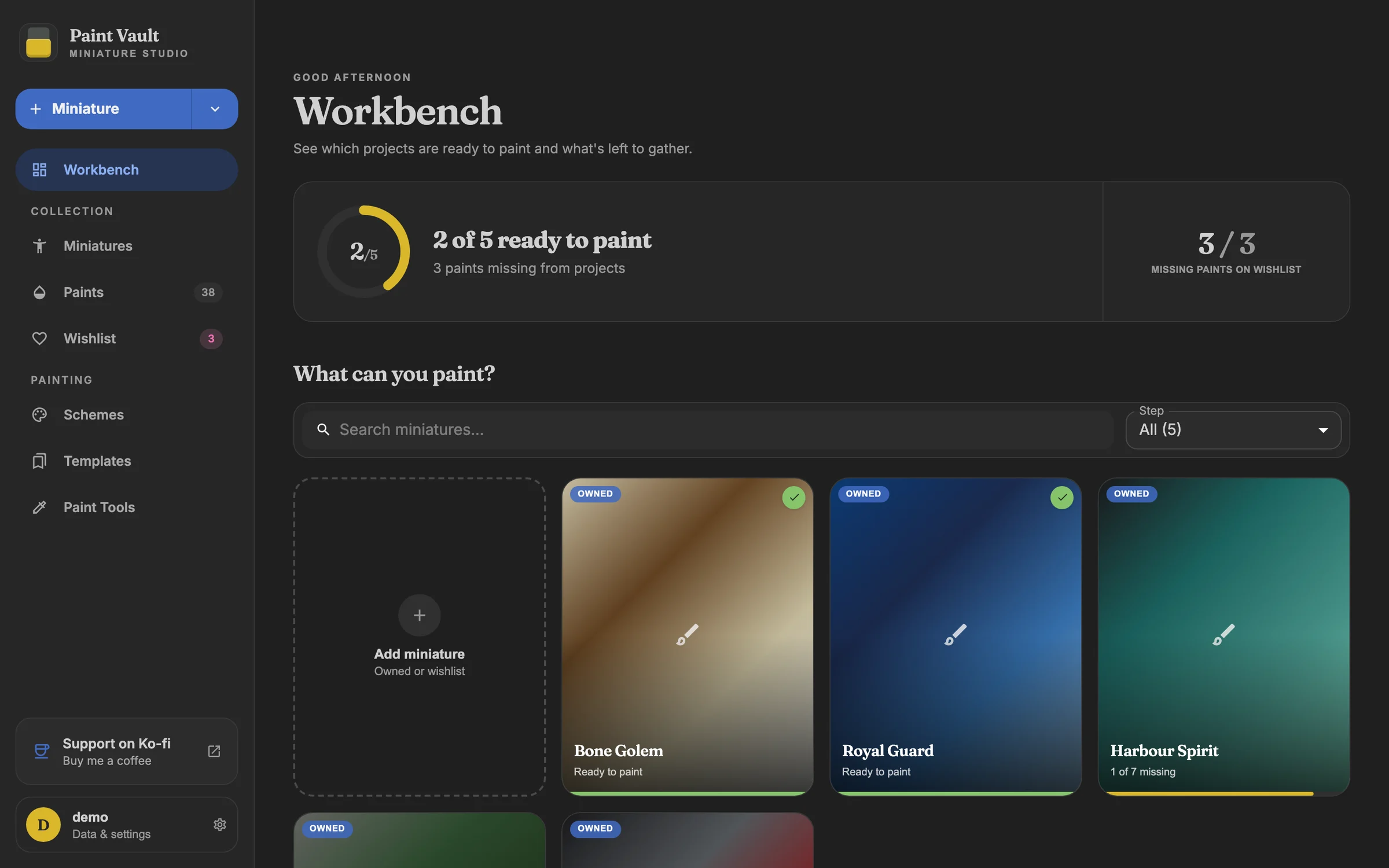
Plugins
Install catalogs as plugins
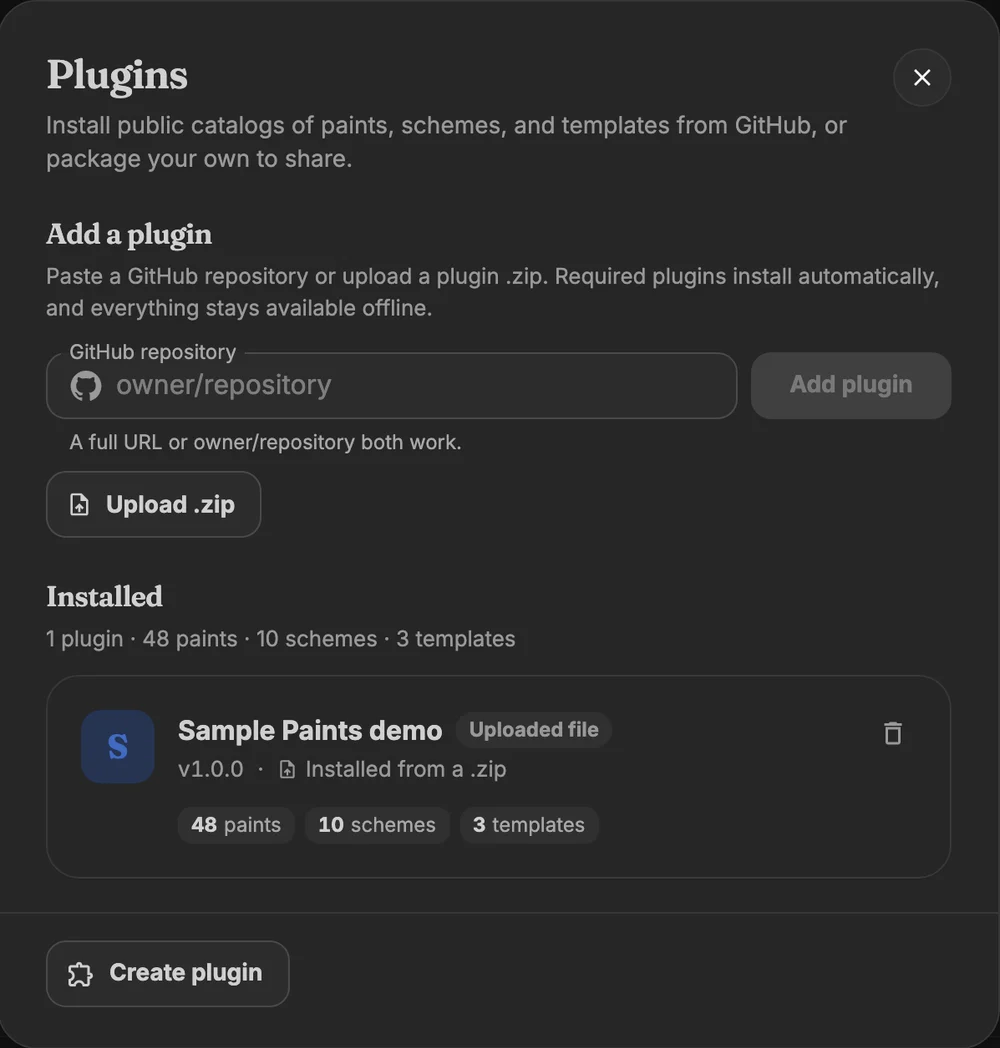
Paintwarden doesn’t bundle a paint catalog. Paints, color schemes, and miniature templates come from plugins: public GitHub repositories, or .zip files, in the Paintwarden source format. Open Data & settings → Plugins, then paste a repository in owner/repository form or choose Upload .zip. Plugins a catalog depends on are installed with it.
Installed catalogs stay available offline. Plugins from GitHub can be checked for updates and synced. To update an uploaded plugin, upload a newer version of it; uploading the same version changes nothing, and an older version is refused until the installed one is removed. A plugin can be removed once your vault no longer uses its paints, schemes, or templates; the app lists anything that still does.
Create plugin packages your own paints, schemes, and templates as a ready-to-publish repository. The source format guide describes every file.
Paints
Keep your paint library current
Open Paints to search the paints from your plugins, mark a paint as owned or wishlisted, and update the number of bottles on hand. Add your own paints when a color is missing from your catalog.
Workbench
Plan a miniature
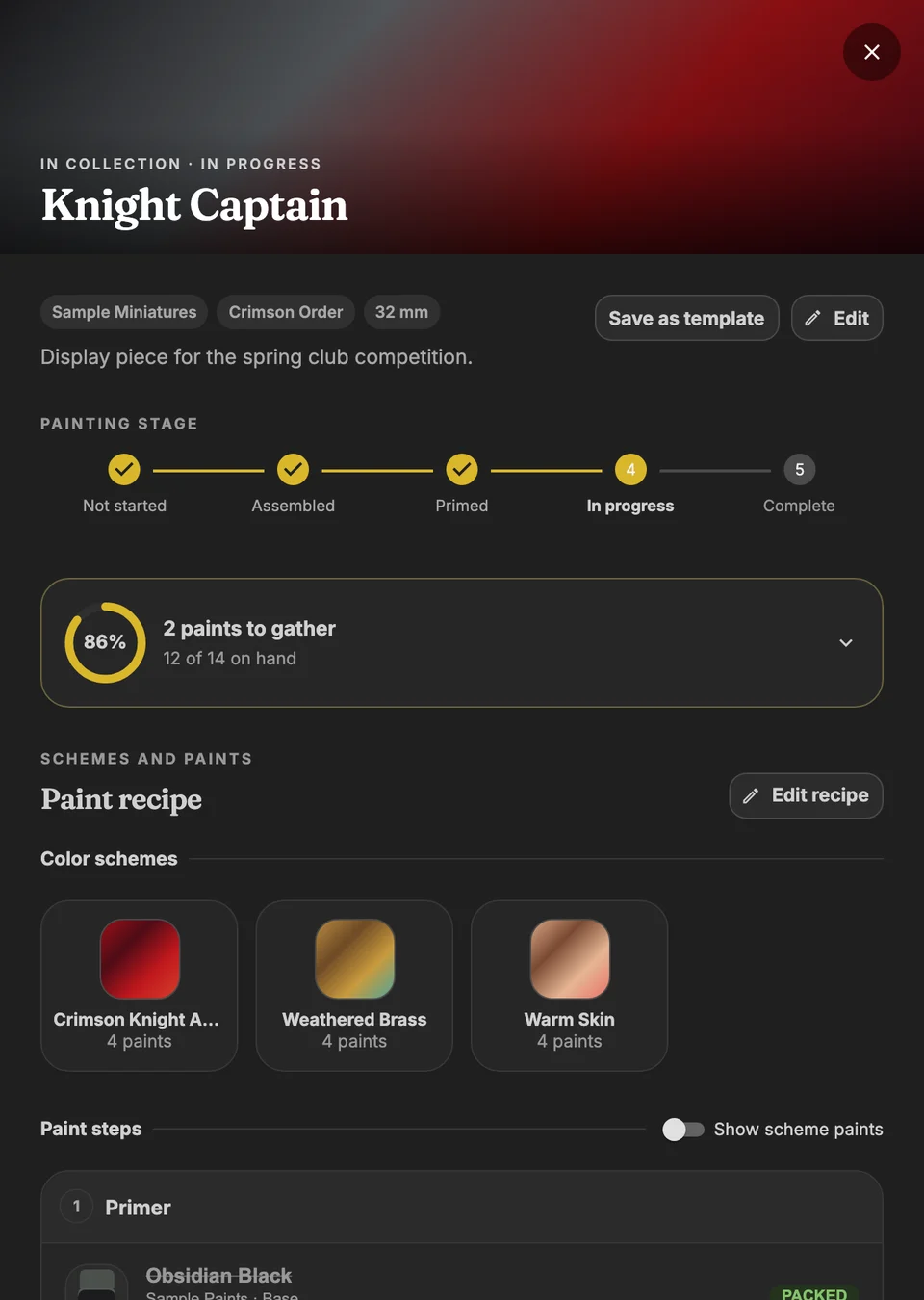
Use Miniature in the sidebar to add a model to your collection or wishlist. Open its detail view to add notes, images, and paint requirements. Attach schemes to reuse a color recipe across models.
The Workbench summarizes which projects are ready to paint and which paints are still missing. From a model’s paint recipe, add missing colors to your wishlist.
Schemes
Build reusable schemes
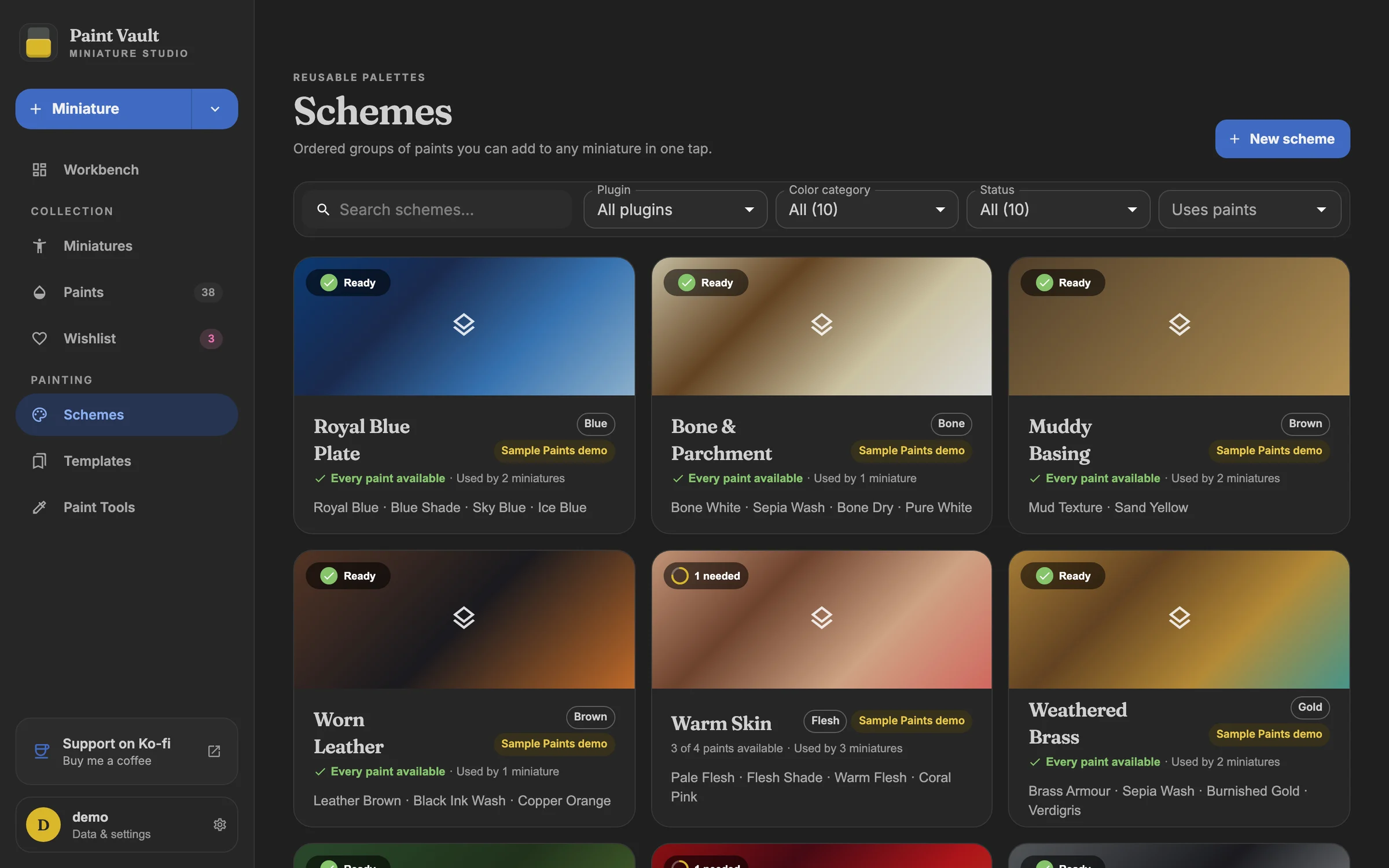
Open Schemes to browse color recipes or create your own. A scheme can include ordered paints, dividers, and reference images. Attach one to a miniature when you want its recipe available in the project.
Templates
Start from a template
A template is a miniature’s starting setup: its maker, faction, color schemes, and paint steps. Browse the templates from your plugins in Templates, pick one when you add a miniature, or use Save as template on a miniature you’ve already planned.
Paint Tools
Compare colors and convert recipes
Paint compare ranks catalog paints by screen-color similarity, with notes on lightness, hue, and vividness. Treat the score as a starting point: finish, primer, and coverage can change the real result.
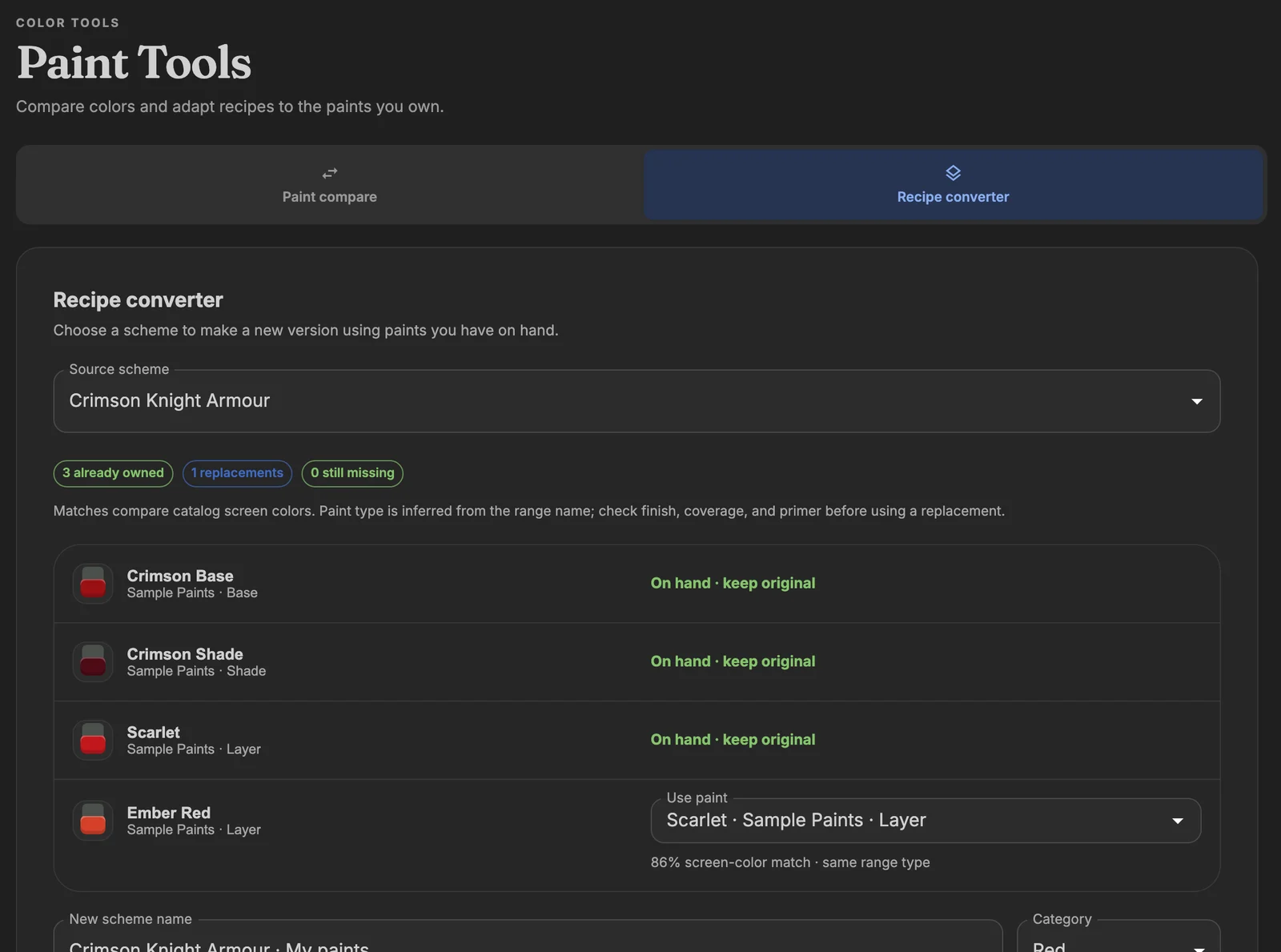
The Recipe converter adapts a scheme to your collection. Review the suggestions and save a new scheme; the source remains unchanged.
Wishlist
Gather what is missing
The Wishlist collects paints and miniatures you want. Add paints from a model’s missing recipe, then use the list while shopping. Updating paint ownership brings your collection and project readiness back together.
Backups
Back up your vault
In Data & settings, Export saves one .zip file with everything in the vault: miniatures and their photos, paints, recipes, schemes, templates, and installed plugins. Your account and password aren’t included.
Restore from a backup shows what the file contains, then either merges it into the current vault or replaces the vault with it. The repository guide also covers copying the Docker volume.
Need the installation steps?
Pick the desktop app or a self-hosted vault.